
Gmail Campaign Toolkit for Windows: Simplify Personalized Email Campaigns with Python, Excel, Word and Gmail
A practical, locally running email campaign management tool for professionals, consultants, coaches, and small businesses.
Published by VSKUMARCOACHING.COM
Introduction: Email Campaign Management Should Not Be Complicated
Email remains an important business communication channel. Coaches use it to reach prospective clients. Consultants use it to follow up with business contacts. Independent professionals use it to share services, announcements, and useful resources. Small businesses use it to communicate with existing customers and prospects.
Yet managing personalized email campaigns can become time-consuming when contact information is stored in spreadsheets, messages are maintained in separate documents, and sending progress is tracked manually.
Common challenges include:
- Maintaining and updating contact lists.
- Personalizing email messages for individual recipients.
- Repeating the same preparation steps for every campaign.
- Tracking which contacts have been processed.
- Reviewing sending activity and campaign status.
- Setting up a repeatable process without investing in a large marketing automation platform.
To address these practical needs, VSKUMARCOACHING.COM introduces the Gmail Campaign Toolkit — Windows Edition: a Python-powered application with a browser-based dashboard that runs locally on a Windows computer.
It brings together Excel contact lists, Word email templates, Google Gmail authorization, campaign controls, and status monitoring in one practical workflow.
Product page: https://vskdevops.gumroad.com/l/gmailcampaign
1. What Is the Gmail Campaign Toolkit?
The Gmail Campaign Toolkit is a locally running Windows application designed to help users organize and execute straightforward, personalized Gmail campaigns.
Its main application, web_dashboard.py, starts a local web server. You interact with the application through your browser at a local address such as http://localhost:5000.
This is an important distinction: the application uses a web interface, but it is not a hosted SaaS platform. The dashboard runs on your own computer, and the application connects to Gmail using your configured Google authorization.
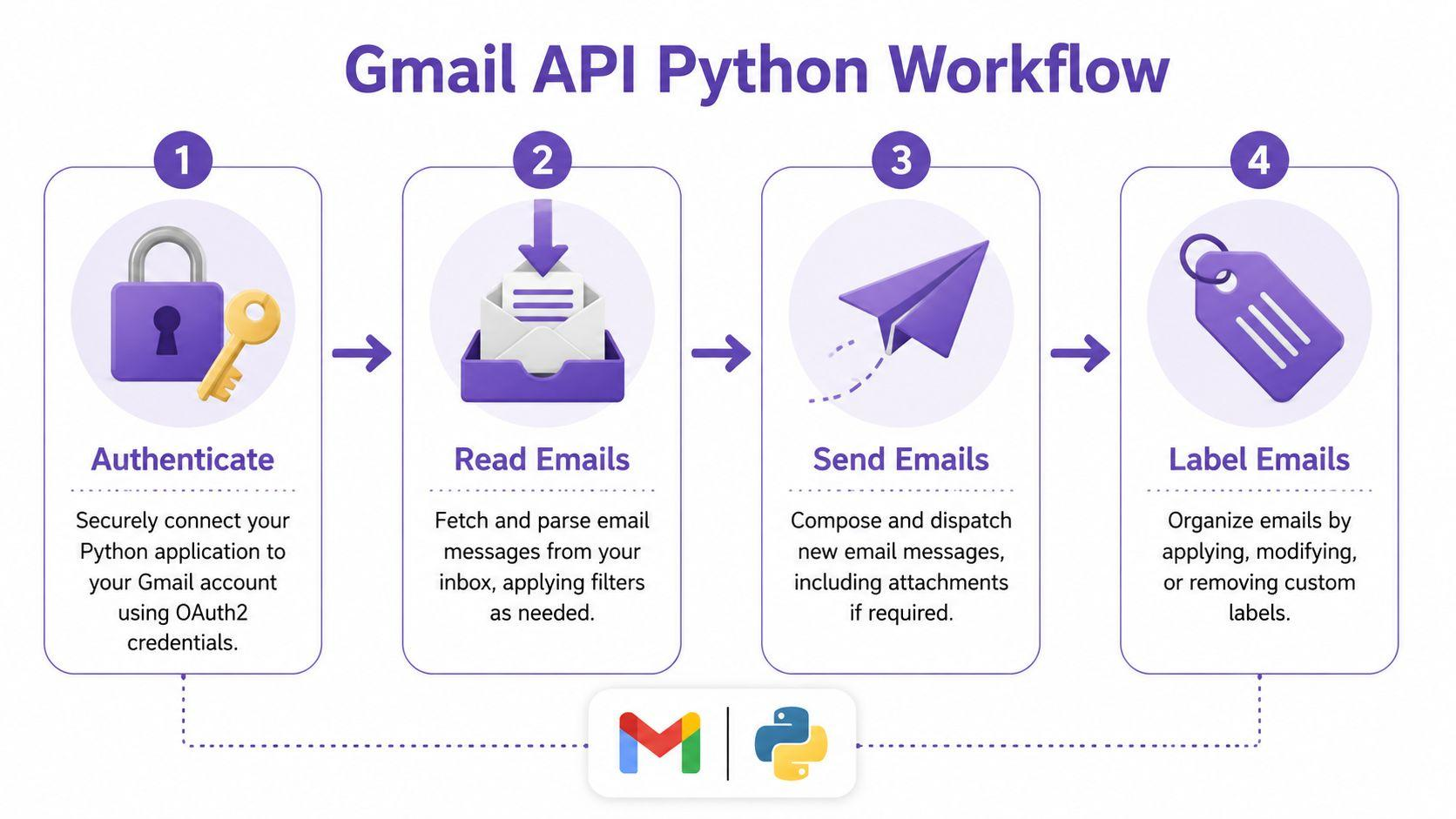
The toolkit combines several familiar tools:
- Python for the application logic.
- Flask for the local browser-based dashboard.
- Microsoft Excel for contact-list management.
- Microsoft Word for email-template preparation.
- Google OAuth and the Gmail API for authorized email sending.
- Application logs and status information to help you monitor campaign activity.
The goal is to make a repeatable email workflow more manageable without requiring you to build a Python application from scratch.
2. Who Can Benefit from This Toolkit?
The product is intended for people who need a practical, structured way to manage legitimate email outreach.
Coaches and independent consultants
Prepare a contact list, create a personalized introduction, and organize outreach to prospective clients who have a legitimate reason to hear from you.
Freelancers and independent professionals
Maintain professional contacts and send relevant, personalized service announcements or follow-up messages.
Small business owners
Organize straightforward email communications without introducing a large marketing automation platform.
Technical professionals and Python learners
Explore how a practical application combines a browser dashboard, spreadsheet inputs, document templates, API authorization, and application logging.
Small teams evaluating local automation
Use the toolkit as a starting point for understanding how an email workflow can be structured and monitored. Review your operational, security, and compliance requirements before using it with business-critical data.
The toolkit is not a substitute for a full customer relationship management system, a bulk email delivery service, or a comprehensive marketing automation platform.
3. How the Toolkit Works: From Contact List to Campaign Status
The workflow is designed around familiar business documents and a browser-based interface.
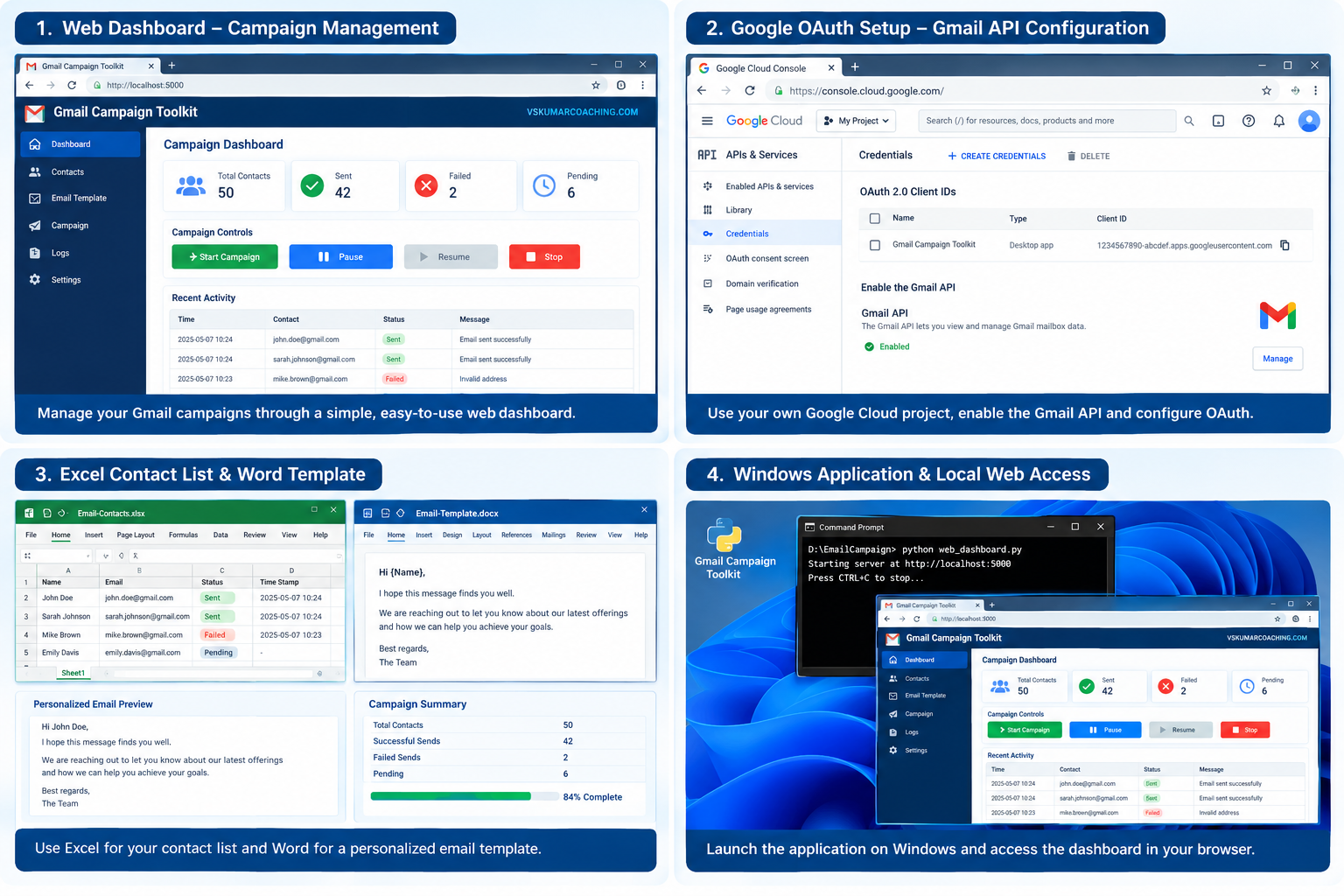
Step 1: Prepare your Excel contact list
Organize the recipients you are authorized to contact in the supplied Excel workbook, Email-Contacts.xlsx.
The workbook uses fields such as:
NameEmailStatusTime Stamp
The application may create the Status column if it is missing. These fields help organize recipient information and record processing outcomes.
Before running a campaign, review the contact data, remove duplicates, verify addresses, and ensure that your outreach complies with applicable privacy and anti-spam requirements.
Step 2: Create your Word email template
Prepare your message using the supplied Email-Template.docx example.
Supported name placeholders such as {Name} or {name} can personalize messages for individual recipients when used in supported template content.
For example:
Subject: An introduction to our consulting services
Message:
Hello {Name},
I am reaching out to share information about our consulting services and the areas where we may be able to support your business.
If this is relevant to your current priorities, you are welcome to reply to this email.
Regards,
Your Name
This is an illustrative example. Replace it with your own message, ensure the content is relevant to the recipient, and include any legally required identification or opt-out information.
Note that Word formatting may not transfer completely to the resulting email. Complex layouts and tables should be tested before a real campaign.
Step 3: Configure Google authorization
The toolkit uses Google’s OAuth authorization process to access the Gmail sending capability associated with your account.
You configure your own Google Cloud project and OAuth credentials by following the setup guide. The application uses the Gmail API scope:
https://www.googleapis.com/auth/gmail.send
You must provide your own valid configuration and authorize the account you intend to use. Do not share your Google credentials, OAuth tokens, or private contact lists with other people.
Google’s authorization requirements and account policies apply. Complete the setup and test it with a small, controlled campaign before using the application for business outreach.
Step 4: Launch the local web dashboard
Start the Python application on your Windows computer and open its local dashboard in your browser.
The dashboard provides access to campaign controls and status information. Depending on the current application state, you can review contact information, inspect logs and statistics, start or pause sending, and manage the session.
This approach gives you a browser-based working interface without requiring a public website or remote hosting environment for the application itself.
Step 5: Monitor campaign activity
During campaign execution, the dashboard provides status and activity information to help you understand what the application is processing.
The toolkit includes status tracking, log information, and campaign summaries associated with supported pause, completion, logout, and error events.
These features help make the workflow more visible than a process that depends entirely on manual spreadsheet updates.
Important: Status records and logs should be reconciled with Gmail activity during testing. Do not assume that every recorded outcome proves successful delivery to the recipient’s inbox.
Step 6: Review the results and prepare the next run
After a controlled campaign, review the application logs, contact statuses, and relevant Gmail activity.
Investigate failed or ambiguous outcomes before retrying. Keep a backup of the original contact list and avoid repeatedly contacting recipients who have already received the intended message.
A consistent review process helps you improve contact quality, message relevance, and operational discipline.
4. Key Features at a Glance
| Feature | Business value |
|---|---|
| Local browser dashboard | Provides a convenient interface on your Windows computer |
| Excel-based contact list | Keeps recipient information in a familiar spreadsheet format |
| Word email template | Helps you prepare reusable, personalized message content |
| Google OAuth authorization | Connects the application to Gmail through your configured authorization |
| Campaign controls | Supports available start, pause, and session-management actions |
| Status and activity logs | Helps you review processing activity and investigate issues |
| Campaign summaries | Provides additional visibility around supported campaign events |
| Setup and troubleshooting documentation | Helps users configure the application and work through common issues |
The toolkit is intended to simplify the organization and execution of a straightforward campaign. It does not currently provide a complete marketing automation suite with audience segmentation, drip sequences, engagement-triggered follow-ups, or open-and-click analytics.
5. Why Use a Local Application Instead of Building One from Scratch?
Building a custom email automation application requires more than writing a script that sends a message.
A usable workflow must bring together input files, message preparation, authentication, application controls, logging, status handling, and setup instructions.
For a professional who wants to evaluate this type of workflow, starting with an existing toolkit can reduce the initial development effort.
Potential advantages include:
- A defined starting point: Work with an existing application rather than designing every component from the beginning.
- Familiar business inputs: Use Excel and Word for contact and message preparation.
- A visible operating interface: Interact through a browser dashboard.
- A practical learning opportunity: Examine how Python, Flask, OAuth, Gmail APIs, and business documents fit together.
- A repeatable workflow: Establish a consistent preparation, execution, and review process.
The amount of time saved depends on your existing process, contact-list quality, technical environment, and the extent of customization you require. The toolkit does not guarantee a specific return on investment or eliminate the need for testing.
6. What Is Included in the Product?
The intended product package includes the following materials, subject to the final release package published on the product page:
- Python application source code — the main local dashboard application,
web_dashboard.py. - Installation and configuration guide — instructions for preparing the Windows environment.
- Excel contact-list template — a starting point for organizing recipients.
- Word email-template example — a reusable starting point for personalized messages.
- Email-template and daily-status specification — an explanation of template handling and status fields.
- Google OAuth setup guide — instructions for configuring your own Google authorization.
- Sample campaign and testing checklist — a structured way to test the workflow before live use.
- Troubleshooting guide — practical guidance for common setup and execution problems.
- Product overview PDF — a reference for the toolkit.
- Product demonstration video — a walkthrough of the application, provided through the delivery method specified on the product page.
Before purchasing, review the final Gumroad listing to confirm the exact files and delivery arrangements included in the release.
Your private Google OAuth credentials, tokens, contact data, and confidential email content are not supplied as ready-to-use customer credentials. You must configure your own environment.
7. Installation and Technical Requirements
The toolkit is designed for a Windows environment and uses Python to run its local dashboard.
You should be comfortable following setup instructions and working with files on your computer. Depending on your environment, you may need to install Python and the required packages, configure Google Cloud OAuth, and authorize the Gmail account you intend to use.
The local dashboard is intended to be accessed from your own computer. It is not a remotely hosted service, and purchasing it does not provide a managed server or ongoing cloud hosting.
Before using it with sensitive business information:
- Keep the application and configuration files in an appropriate local folder.
- Protect OAuth credentials and generated tokens.
- Use only contact data you are authorized to process.
- Test the workflow with a small set of recipients.
- Review application logs and Gmail activity.
- Keep backups of important input files.
- Avoid exposing the local dashboard to public networks.
- Verify the current application’s limits and behavior against the supplied testing checklist.
The product is a practical toolkit, not a guarantee of production-grade security, uninterrupted execution, or email deliverability. Organizations with strict security, privacy, or compliance requirements should conduct their own technical review before deployment.
8. Responsible Email Outreach Matters
Automation should improve the consistency of legitimate communication, not create unwanted email at scale.
Use the toolkit only for appropriate, permission-based or otherwise lawful outreach. Follow applicable privacy and anti-spam laws, Google’s policies, and any requirements relevant to your location and recipients.
In particular:
- Contact people for a relevant and legitimate purpose.
- Respect consent, objections, and opt-out requests.
- Avoid misleading subject lines and deceptive sender identities.
- Maintain accurate recipient records.
- Stop contacting recipients who should no longer receive messages.
- Start with small tests and monitor the actual Gmail sending results.
- Understand the sending limits and account restrictions that apply to your Google account.
The application’s configured sending limit is a software setting, not a guarantee that Google will permit every campaign or that messages will reach inboxes. Deliverability depends on multiple factors beyond the toolkit.
9. How Much Value Can It Deliver?
The best way to evaluate the toolkit is to compare your current workflow with the proposed one.
For example, a user who currently maintains separate files, manually prepares personalized messages, and tracks progress through several steps may benefit from bringing these activities into a more structured process.
A simple evaluation can measure:
- Time required to prepare a campaign.
- Time spent personalizing messages.
- Time spent updating recipient statuses.
- Time spent investigating failed sends.
- Time spent preparing a campaign summary.
- Frequency of data-entry mistakes.
Calculate your potential value using your own measurements:
Estimated monthly time saved
= (Current time per campaign − New time per campaign) × Campaigns per month
Estimated monthly labor value
= Estimated hours saved per month × Your chosen hourly labor cost
These are estimates, not promised savings. Include setup, testing, maintenance, and troubleshooting time when evaluating the overall business case.
10. How to Get Started
If you want to explore a local Gmail campaign workflow, the next step is to review the toolkit and decide whether its capabilities fit your needs.
Step 1 — Review the product
Read the product description, included-file list, system requirements, and limitations.
Step 2 — Purchase and access the package
Use the product page to review the current price and available delivery arrangements.
Step 3 — Configure your environment
Follow the installation guide and configure your own Google OAuth authorization.
Step 4 — Run a controlled test
Use a small contact list and test message. Validate personalization, sending behavior, status updates, and logs before expanding usage.
Step 5 — Establish your operating procedure
Document your contact-review process, authorization handling, campaign checks, and post-run reconciliation.
Get the Gmail Campaign Toolkit — Windows Edition
Explore the product and review the package details here on different sites, as its available:
https://vskdevops.gumroad.com/l/gmailcampaign
https://vskumar-digital.lemonsqueezy.com/checkout/buy/9ba8994c-bf4f-4366-b9b3-627b516a1b96
11. Why VSKUMARCOACHING.COM Is Promoting Practical Automation Tools
At VSKUMARCOACHING.COM, the broader focus is on helping professionals understand how technology can be applied to real business workflows.
Practical automation is not only about learning a programming language or collecting certifications. It is also about understanding a business problem, connecting the right components, designing a usable process, testing outcomes, and making the resulting workflow understandable to its users.
The Gmail Campaign Toolkit reflects that practical approach by combining application logic, business documents, authorization, user interaction, and operational visibility into one product.
For IT professionals exploring automation, AI-enabled business operations, or solution architecture, products like this can also provide a useful example of how technical components work together to support a business process.
Discover more at demo video on Gdrive:
https://drive.google.com/drive/folders/1S5yILiISrc4nLp2SSSbKiuuJQ9NpblV_?usp=sharing
Frequently Asked Questions
Is this a cloud-based email marketing service?
No. The toolkit runs locally on a Windows computer and presents its interface through a local browser dashboard. It is not a hosted SaaS service.
Do I need my own Gmail account and Google OAuth configuration?
Yes. You must configure your own Google authorization and use an account that is permitted to send the intended messages.
Does the product include my Google credentials?
No. You must provide your own credentials and protect your authorization files and tokens.
Can I personalize messages?
The supplied Word template supports name placeholders in supported content. Test the resulting email before sending a real campaign, particularly if your document uses complex formatting.
Does it provide email open and click tracking?
No. The toolkit should not be purchased on the expectation of open tracking, click tracking, or engagement-triggered follow-up automation.
Does it guarantee inbox delivery?
No. The application can initiate authorized Gmail sending, but it cannot guarantee inbox placement, deliverability, or recipient engagement.
Is technical knowledge required?
Some setup is required, including preparing the Windows environment and configuring Google OAuth. The documentation is intended to guide users through these tasks, but users may need to troubleshoot environment-specific issues.
Is it suitable for every business?
Not necessarily. It is intended for straightforward, locally managed email workflows. Businesses that need advanced segmentation, large-scale delivery infrastructure, compliance controls, centralized administration, or sophisticated marketing automation should evaluate a more specialized platform.
Final Thoughts
Effective automation begins with a clearly defined business process.
The Gmail Campaign Toolkit — Windows Edition brings together Python, a local browser dashboard, Excel contacts, Word templates, and Gmail authorization to help organize a straightforward email campaign workflow.
If you want to explore this approach without building every component from scratch, review the product details and determine whether it fits your technical environment and business requirements.
Learn more about practical technology and professional development: VSKUMARCOACHING.COM
Product information should be checked against the final release package. Configure your own authorization, test before live use, and comply with applicable email, privacy, and service-provider requirements.

